

Firmware Upgrade
OTA Updates
Section titled “OTA Updates”LeafKVM does NOT install updates automatically.
To keep your device up to date, you should periodically visit the Update page to check for new releases.
- Open the Web UI → Settings → Update page.
- If a new firmware version is available, a notification will appear on this page.
- You may then choose to download and install the update manually.
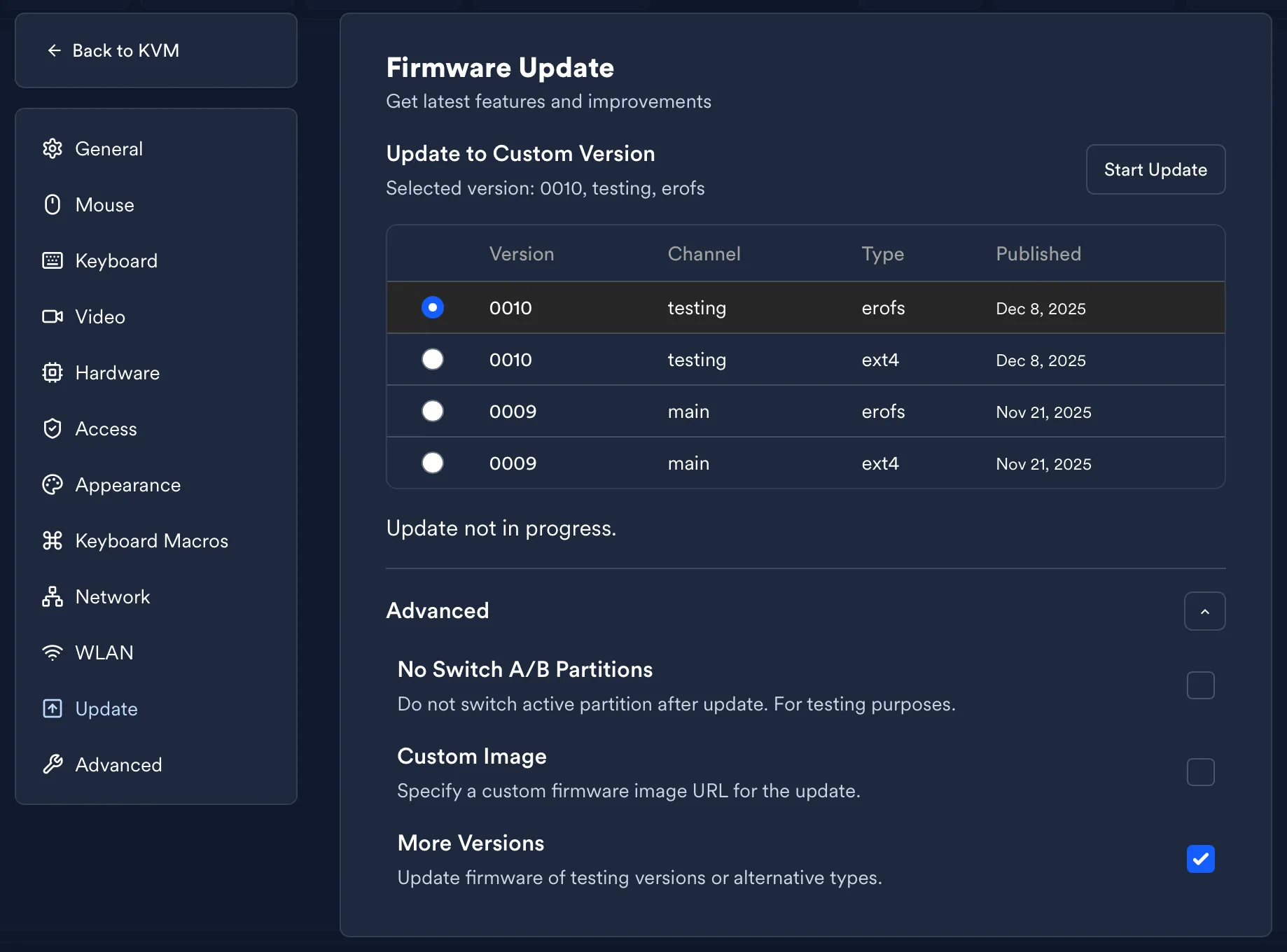
Advanced Update Options
Section titled “Advanced Update Options”Within Web UI → Settings → Update → Advanced, additional developer-oriented features are available:
-
Custom Image — Allows specifying a custom firmware URL for direct installation.
Useful for development builds or internal testing.
-
More Versions — Provides a list of recent releases.
This enables upgrading to a newer version or rolling back to an earlier one when needed.
Release Notes
Section titled “Release Notes”(Released: 09 Nov 2025)
Key Updates
- Multi-language support added.
The device now follows the browser language by default.
(Some translations are still in progress and will be completed in upcoming releases.) - Mouse Jiggler feature introduced.
- Fixed an issue where text could not be pasted from the browser into the target machine.
- Updated keyboard/mouse transmission protocol to the latest upstream version, further reducing HID latency.
(Released: 20 Nov 2025)
Compared with V0007, this update includes:
Fixes & Improvements
- Fixed an issue where the mouse scroll wheel did not function.
(Note: Trackpad scrolling on macOS is still not perfectly smooth — improvements planned for future versions.) - Added HTTP-based ISO mounting, allowing devices to attach ISO images via URL.
- Resolved a Linux TTY issue where:
- keyboard input could freeze, and
- reconnecting after a page refresh sometimes failed.
- Added port forwarding support.
With a public IP and appropriate TCP/UDP forwarding rules, LeafKVM can be accessed directly via the Internet. - Added resize2fs to system images.
Forext4-based firmware, the root filesystem can now be expanded.
Persistence Notice After firmware updates, only the following directories remain unchanged:
/userdata/root/opt
Please store any custom software or scripts in these locations.
For new systemd services, consult the community first — persistent service support is being evaluated.
UDP Port Forwarding Guide
Section titled “UDP Port Forwarding Guide”To access a LeafKVM behind NAT from a public IP, you must forward:
- TCP 80 — Web UI
- UDP 58000 — WebRTC media transport
After configuring router rules, open Settings → Access and fill in the Additional UDP Endpoint with your DDNS domain or public IP and the forwarded UDP port.
Example (router public IP: 201.2.3.4 or my.example.com DDNS):
- Forward UDP 5123 → device:58000
- Forward TCP 8080 → device:80 (or reverse-proxy via HTTPS)
- In Additional UDP Endpoint:
201.2.3.4:5123(static IP), ormy.example.com:5123(DDNS)
You can now access LeafKVM via the forwarded TCP 8080 port.
(Released: 08 Dec 2025)
New Features & Enhancements
- Added WLAN country code selection (
Settings → Advanced).
This allows proper regional regulation compliance. - Keyboard macro functionality is now fully operational.
- Devices with hardware revision V1.3 now display real-time USB input voltage on the home screen.
- Added GUI screenshot capability (
Settings → Advanced), allowing users to capture the touchscreen interface. - Added HTTPS access support.
The Web UI can now be served securely over HTTPS.
V0011 new
Section titled “V0011 ”(Released: 2026.2.13)
New Features & Enhancements
- Added integrated Tailscale VPN support.
Configuration is available under Settings → VPN, and Tailscale status can also be viewed directly on the device screen. - Added a virtual mouse pointer for the touchscreen browser.
- Finger swipe: move the virtual pointer
- Single tap: send left-click at the current pointer position
- Two-finger tap: send right-click
- Three-finger drag: hold and drag with the left mouse button
- Added timezone settings under Settings → General in the Web UI.
The default behavior is automatic detection based on the browser’s timezone. - Improved HDMI Preview zoom interactions for more intuitive and flexible control.
- Upgraded the system to Buildroot 2025.02.10 and updated the compiler to GCC 14.
- Added Wake-on-LAN (WoL) support.
- Improved display behavior when brightness is set to 0.
The screen is now fully turned off (not just the backlight), helping to prevent screen burn-in.
Bug Fixes
- Fixed an issue where uploading large ISO files could fail.
- Fixed an issue where WPA3 Wi-Fi networks could not be connected.
© 2026 LeafKVM Team
Contact