Developing
LeafKVM is designed with developers in mind. It provides several development-oriented modes—SSH access, firmware loader mode, and a dedicated serial console—to support debugging, customization, and firmware experimentation.
Whether you are testing new builds, extending system functionality, or contributing upstream, the following sections outline the key tools available.
Developer Mode (SSH Access)
Section titled “Developer Mode (SSH Access)”Add SSH Key
Section titled “Add SSH Key”- Open Web UI → Settings → Advanced.
- Navigate to SSH Access section.
- Paste your SSH public key into the input box.
- Save the configuration.
If you don’t have a ssh-key, please see below.
Generating an SSH Key
Section titled “Generating an SSH Key”macOS / Linux
Section titled “macOS / Linux”ssh-keygen -t rsa -b 4096- Press Enter to accept the default file location: ~/.ssh/id_rsa.
- Optionally enter a passphrase for added security.
- Your public key will be created at: ~/.ssh/id_rsa.pub.
Windows (PowerShell)
Section titled “Windows (PowerShell)”ssh-keygen -t rsa -b 4096- Press Enter to accept the default path:
C:\Users\<username>\.ssh\id_rsa - The public key will be stored at:
C:\Users\<username>\.ssh\id_rsa.pub
Connecting via SSH
Section titled “Connecting via SSH”Once Developer Mode is enabled:
ssh root@<leafkvm-ip-address>If your key has a passphrase, you will be prompted to enter it.
Loader Mode (DFU)
Section titled “Loader Mode (DFU)”Loader Mode—also known as DFU mode—allows firmware recovery or low-level updates. This mode is useful when SSH or the main system is not accessible, or when testing development images.
Entering DFU Mode
Section titled “Entering DFU Mode”- Boot the LeafKVM.
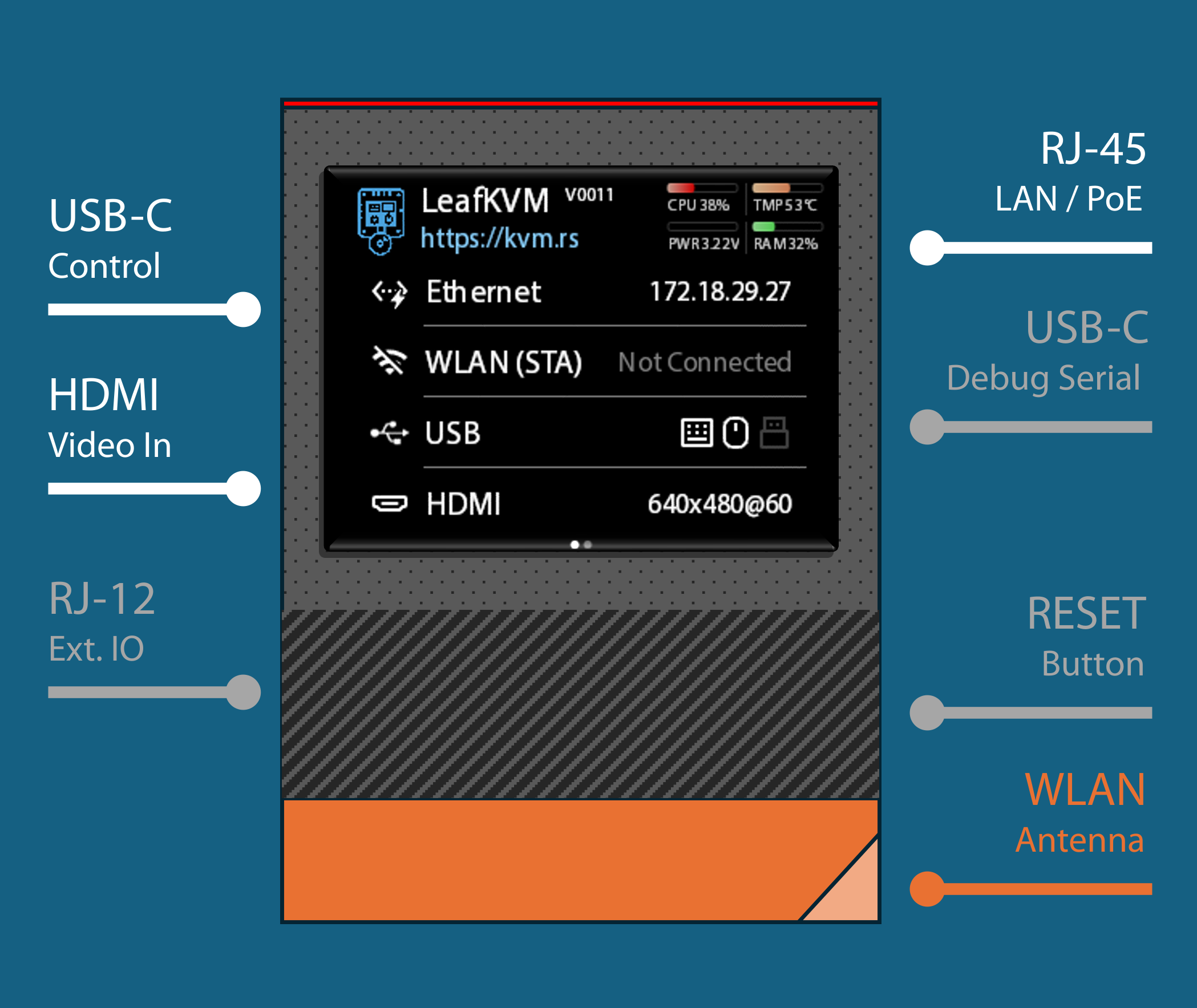
- Press and hold the RESET button until the countdown appears.
- Keep holding until the device reboots.
- Release the button; the device will enter Loader (DFU) Mode.
Flashing Firmware (DFU)
Section titled “Flashing Firmware (DFU)”TBD — The exact tooling and flashing commands will be documented when the DFU utilities are finalized.
Serial Console
Section titled “Serial Console”LeafKVM provides a dedicated Debug USB-C port for serial console access. This port includes an onboard CH340 USB-to-UART bridge, exposing system logs, boot messages, and shell access during early boot stages.
connects to RV1106G3’s
UART2_M1
Using the Debug Port
Section titled “Using the Debug Port”- Connect a USB-C cable from the Debug USB-C port to your computer.
- A serial port such as
/dev/tty.usbserial-*(macOS/Linux) orCOMx(Windows) will appear automatically. - Open it using a terminal tool (PuTTY / minicom / screen).
© 2026 LeafKVM Team
Contact